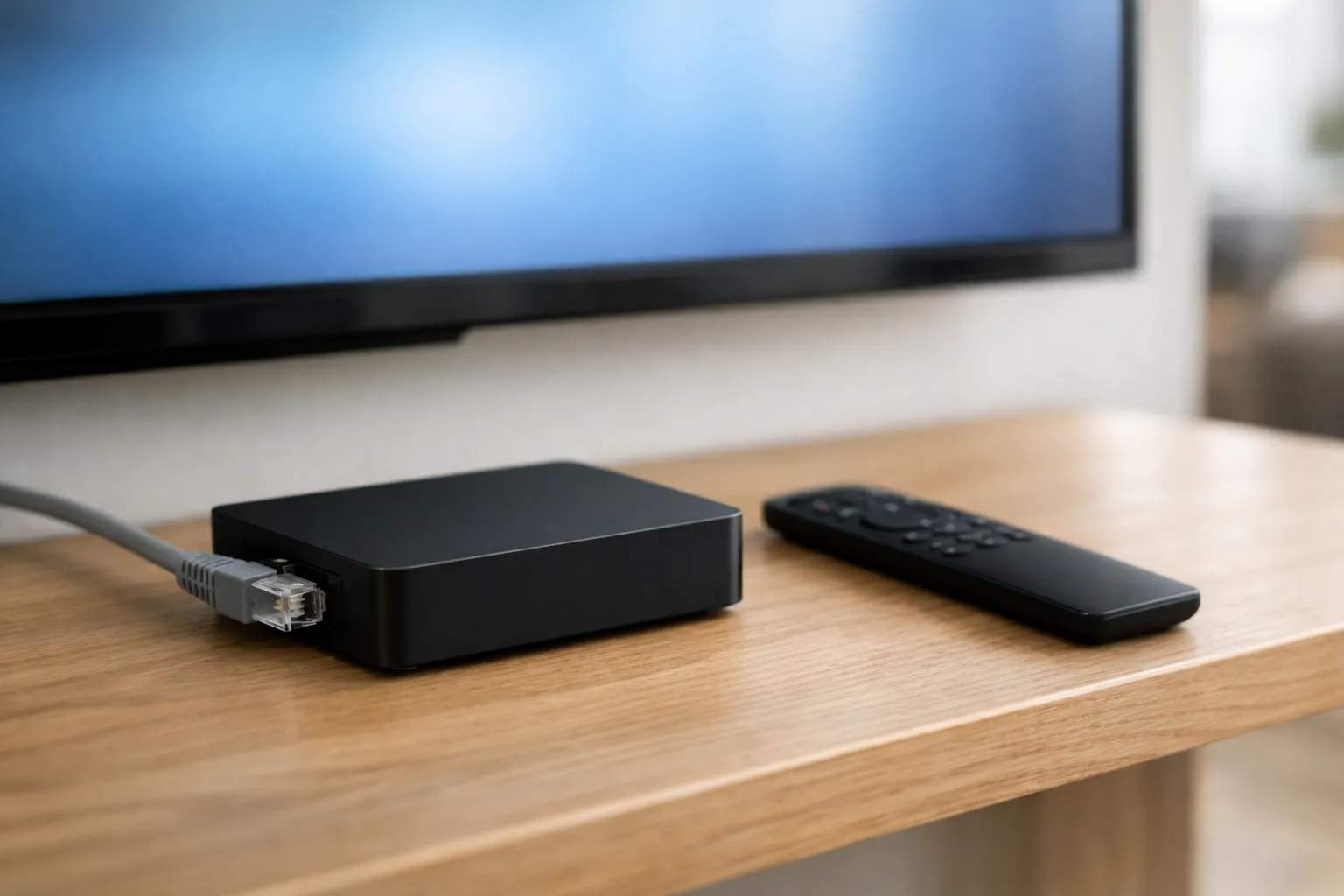
How to set up IPTV on MAG box models from Infomir: send your provider the box's MAC address, which is under System settings, Device info. Once it is registered, you receive a portal URL. Enter it in System settings, Servers, Portals, as the Portal 1 URL, save it, then restart the portal. Your channel list and TV guide load with no app and no password, because the box signs in with its MAC address.
We sell Vivimate, an IPTV subscription, and Infomir makes MAG boxes; we have no tie to Infomir. The menu names and model specs below come from Infomir's own documentation and product pages, read on November 7, 2026. We didn't set up a MAG box for this guide, and menu wording can differ a little between software versions.
A MAG box is different from a Fire TV Stick or a smart TV: the Linux models don't install IPTV apps. They load a portal, a web address on the provider's server, and that portal becomes your channel list. For app-based devices, use the setup guide for every device instead.
What you need for MAG box IPTV
- An Infomir MAG box with its remote. The models in the table below all use the same portal settings.
- The box's MAC address, so we can register it. The steps show where to find it.
- A portal URL from us. It is different from the server URL, username and password used in apps, so ask for MAG details on WhatsApp.
- A wired connection if you can. We suggest 10 Mbps for HD, 20 Mbps for Full HD and 30 Mbps for 4K, per stream.
Why a MAG box uses a portal instead of a login
Infomir's documentation describes the portal as a web application that the box loads from the provider's server. When the box starts, it contacts the portal URL and identifies itself by its MAC address, a hardware code set at the factory. If that address is registered and the plan is active, the portal sends back the channels and guide. That's why the order matters: we register the MAC first, then you enter the URL.
It also explains the two failures you are most likely to meet. A mistyped URL never reaches the server, so the box can't load the page. A correct URL with an unregistered MAC reaches the server and is turned away.
Which MAG box models work?
Any IPTV MAG box below takes a portal URL in the same place, because they all run Infomir's Linux software. The real choice is picture quality and how the box connects to your router.
| Model and spec page | Highest video mode | Built-in Wi-Fi | 4K? |
|---|---|---|---|
| MAG254 / MAG255 | 1080p | MAG254w1, or a USB adapter | No |
| MAG256 / MAG257 | 1080p | MAG256w2, or a USB adapter | No |
| MAG322 | 1080p | MAG322w1 only | No |
| MAG324 | 1080p | MAG324w2 only | No |
| MAG420 | 2160p | MAG420w1 only | Yes |
| MAG424 | 2160p | MAG424w3 only | Yes |
| MAG520 | 2160p | MAG520w3 only | Yes |
Every model here lists a 100 Mb/s Ethernet port, which is plenty for one 4K stream. Infomir also sells Android TV models. If your box has the Google Play Store, follow IPTV on Android TV and use an app instead of a portal.
Buying a used MAG box
Many MAG boxes in the US are sold secondhand or by resellers rather than direct from Infomir. Two checks save trouble:
- Is it a real Infomir box? Open Device info. The model should read MAG followed by a number, and Infomir's system settings documentation says its MAC addresses begin 00:1a:79. A box that doesn't match may not accept a standard portal.
- Is an old portal still saved?A used box can start straight into someone else's service. You don't need to wipe it: replace the Portal 1 URL with yours and clear Portal 2.
How to set up IPTV on a MAG box, step by step
- Connect and power on. Plug the box into your router with an Ethernet cable, connect it to the TV, and switch it on.
- Read the MAC address. Press Setup on the remote (SET or Services on older remotes) and open System settings, then Device info. The MAC address on an Infomir box begins 00:1A:79.
- Send it to us. Message us on WhatsApp with the MAC address. We register it and send your portal URL in the same chat. The free 24-hour trial works this way too.
- Open the portal settings. In System settings, go to Servers, then Portals.
- Enter the portal. Portal 1 name is optional, so any label will do. In Portal 1 URL, type the address exactly as sent, including http:// and the ending. Press KB on the remote to bring up the on-screen keyboard, and Enter on that keyboard to save.
- Restart the portal. Press Exit, then choose Restart portal in System settings, or Reboot device. The box shows Loading portal, then your channel list.
Those menu names follow Infomir's guide to loading an external portal. If both Portal 1 and Portal 2 are filled in, the box asks you to choose one each time it starts. Infomir's multiportal mode, under More in the same screen, can hold up to 8 portals and pick a default.
Network notes for a MAG box
MAG boxes are built around a wired connection, and most models have no Wi-Fi of their own. If the router is in another room, a long Ethernet cable or a powerline adapter is usually steadier than a USB Wi-Fi adapter. On a Wi-Fi model, keep the box close to the router and use the 5 GHz band where the model supports it. Our guide to the internet speed IPTV needs explains how to test the line where the box sits.
MAG box IPTV troubleshooting
- A page loading error. The box couldn't reach the URL. Re-enter it character by character, with no space before or after, and check the beginning and ending match what we sent.
- The portal loads but refuses the box. The MAC address isn't registered or the plan has ended. Compare the MAC in Device info with the one you sent, then message us.
- A choice of portals at every start. Both portal fields are filled. Clear Portal 2, or set a default in multiportal mode.
- The guide is empty or the times are wrong. Give it time after the first start, then see fixing a blank TV guide.
- No channels at all. Restart the portal, then work through why IPTV channels don't load.
- A full reset. Reset settings in System settings clears chosen settings. Infomir says a full factory reset uses the Bootloader menu on the MAG250, 254 and 270, and the service button on the MAG256 and the 3xx and 4xx series. You'll need to enter the portal again afterward.
- Still stuck? Message us on WhatsApp with the model, the MAC address and what the screen says. A person replies 24/7.
Getting MAG details from Vivimate
A Vivimate plan is the same on a MAG box as on any other device. Only the delivery changes: send us the MAC address, and support sends MAG details instead of an app login. Plans cost $19.99 for 1 month, $29.99 for 3 months, $39.99 for 6 months or $69.99 for 12 months plus 2 free, prepaid for one device, with no contract.
Start with the free 24-hour IPTV trial on your own box, with no card taken, or compare Vivimate plans and prices.
Frequently asked questions
How do I set up IPTV on a MAG box?
Send your provider the box's MAC address so it can be registered, then enter the portal URL you receive under System settings, Servers, Portals, in the Portal 1 URL field. Save, restart the portal, and the channel list loads.
Where is the MAC address on a MAG box?
Press Setup on the remote, open System settings and choose Device info. Infomir's documentation gives the format as 00:1a:79 followed by six more characters, with 00:1a:79 being Infomir's own code.
Can I install TiviMate or IPTV Smarters on a MAG box?
Not on the Linux models in this guide. They use the built-in portal instead of apps, so the portal is the player. If you want an app, use an Android TV device or a Fire TV Stick instead.
Which MAG box do I need for 4K?
A model that outputs 2160p, such as the MAG420, MAG424 or MAG520. The MAG254, MAG256, MAG322 and MAG324 stop at 1080p, so they'll show 4K channels in HD at best.
What happens if I replace my MAG box?
The new box has a different MAC address, so the old registration won't carry over. Send us the new MAC on WhatsApp, then enter the same portal URL once we confirm the change.
Can I use one Vivimate plan on a MAG box and a phone?
Yes. Ask us for MAG details for the box and use the standard login on the phone. Each device that plays at the same time counts toward your plan, and plans cover 1 to 4 devices at once.
Stream Everything with Vivimate
55,000+ live channels · Up to 4K UHD · No contract · From $19.99/month