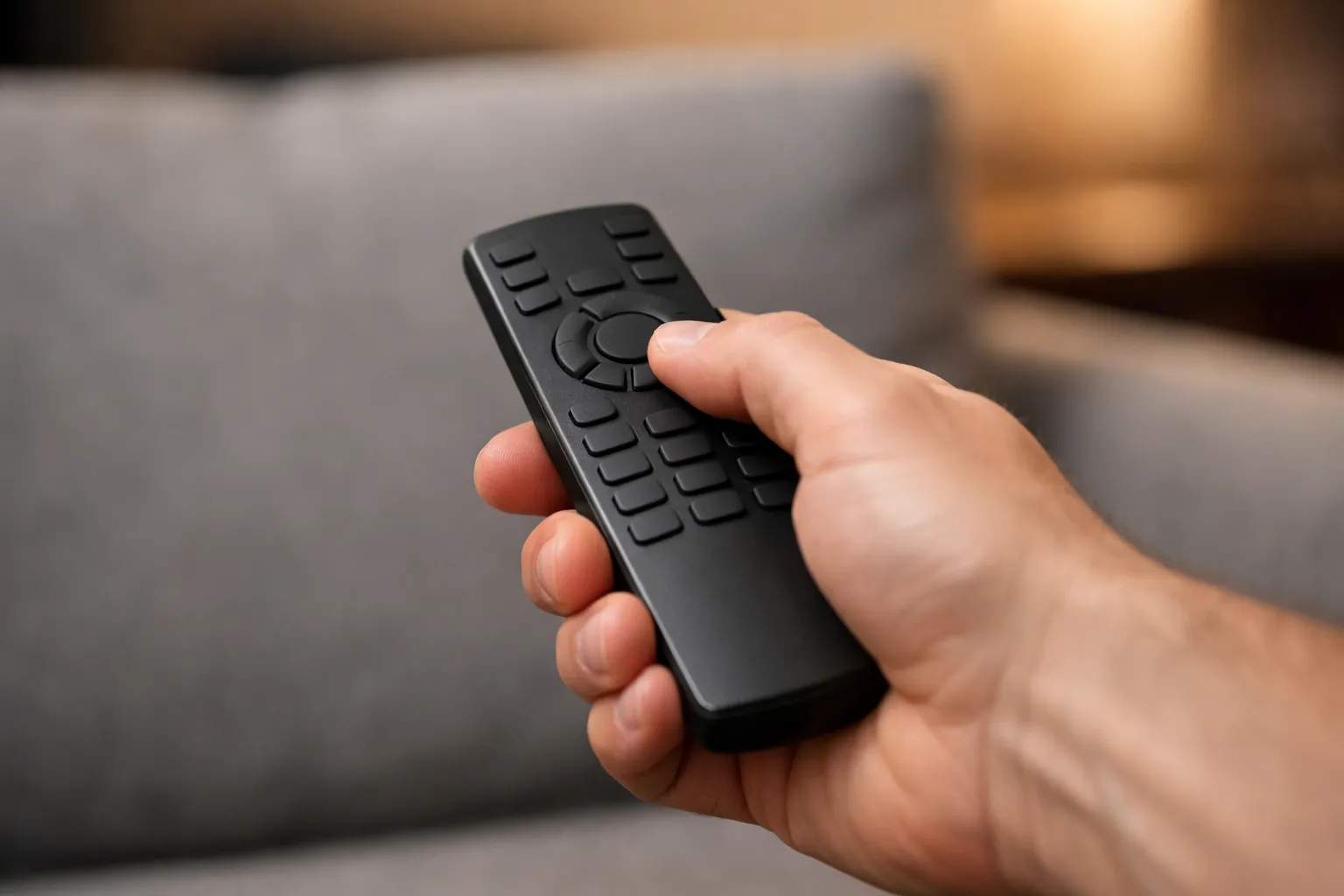
This DStv remote guide starts with the model. DStv packs the A7 remote with the Explora 2A and 3A, the A8 with the Explora Model 3B and the A9, a universal remote, with the Explora Ultra, and says any Explora remote works on every Explora. The blue DStv button opens the main menu and HELP opens Tools. The DStv pages we read give no TV pairing codes, so we print none.
We sell Vivimate, a general IPTV subscription that doesn't carry DStv or SuperSport, and we don't have a DStv remote in hand. Every model, button and fix below comes from DStv's help pages and decoder guides, read on November 8, 2026 and linked. The button guide dates from 2014, so labels on newer remotes may differ.
Which DStv remote you have
DStv's comparison of the Explora Ultra with the 2A and 3A lists the A7 remote with batteries in the 2A and 3A boxes and the A9 with the Ultra. Its Explora 3B FAQ names the A8. Mixing them is fine: DStv's FAQ on remotes for the 3B says "Any remote shipped with a DStv Explora is compatible", and for the Ultra it recommends the A9 while accepting remotes shipped with all Exploras.
What the main buttons do
DStv's Explora quick guide (South Africa, November 2014) explains the buttons below. Its 2021 internet connection article adds that HELP sits at the bottom right of the remote and that ALT opens the on-screen keyboard when you type a WiFi password.
| Button | What DStv says it does |
|---|---|
| DStv (blue) | Opens DStv Central, the one menu with all content and settings. |
| BOXOFFICE, CATCH UP, PLAYLIST, TV GUIDE, SEARCH | Hotlinks that jump straight to each section. |
| OK | On a programme, lists the actions: record, set a reminder, see when it airs again. |
| i | Shows the title of what you're watching; press again for more detail. |
| OPTIONS | Changes language, aspect ratio, subtitles or channel group; in a list, changes the sort order. |
| GRID | Shows what's on other channels; OK tunes to the one highlighted. |
| TV | Returns to live TV. |
| PLAY/PAUSE | Pauses live TV for up to 2 hours; hold it for slow motion. |
| FF and REW | Fast forward or rewind; press up to three times for top speed. |
| REPLAY | Jumps back 10 seconds each press. |
| STOP | Stops a recording in progress. |
| HELP | Opens Help, where Tools holds the Connectivity Checker. |
| ALT | Jumps to your schedules from the Playlist; on a WiFi password screen, opens the on-screen keyboard. |
Two shortcuts from the same guide are worth knowing. Press the UP arrow while the programme banner is showing to see what's in the 2-hour buffer, and press STATUS BAR, then FF or REW, to move quickly through a programme. Recording steps are in our DStv Explora guide.
Using a DStv remote to control your TV
DStv's Explora Ultra remote FAQ calls the A9 "a universal remote" that can be programmed to control other audio and video equipment, like your TV, and the 3B FAQ says the same of the A8. Neither page, nor any other DStv page we read, gives the programming steps or a TV brand code. We won't guess codes. DStv's Explora guide says a separate quick guide for the remote is packed with the decoder: use that, or ask DStv.
When the remote stops working
The clearest test on DStv's pages is in the quick start guide for the DStv HD decoder, model 6S (December 2020). Its front panel has a light that gives a green blink when the decoder has received a command from the remote. The same guide lists a solid red light for standby, solid amber while the decoder downloads software and flashing red for an error.
- Watch the front light as you press a button. A green blink means the remote is getting through, so the problem lies elsewhere.
- Change channel without the remote. The 6S guide says P- goes to the previous channel and P+ to the next, on the decoder itself.
- Reboot. Press the front reset button once to switch in and out of standby, or press and hold it for a few seconds to reboot.
- Read any on-screen error. If the TV shows an E-code, our DStv error codes page covers what DStv says about it.
- Still nothing. Contact DStv; the DStv pages we read give no remote reset or re-pairing procedure.
These front-panel details are for the HD decoder 6S. We didn't find the same front-panel instructions for the Explora on DStv's pages.
Before you contact DStv, have two details ready. The 6S guide asks you to quote the model number printed on the front panel when you call with a technical query. It also puts the IUC or smartcard number on the label under the decoder, and that number is what the same guide asks for whenever you open, update or change a DStv account by phone or at an agent.
Replacing a lost or broken remote
Since any Explora remote works with every Explora, a replacement doesn't have to match your model exactly. DStv sells remotes on their own: DStv Mauritius, for example, lists the Explora Remote at MUR 900 (read November 8, 2026). DStv South Africa's online store showed our reader only its title, so we have no rand price; check the store or a DStv service centre. Package prices are on our DStv packages and prices page, and our guide to DStv's packages and apps explains decoder versus DStv Stream, which runs in an app and needs no DStv remote at all; see watching DStv without a dish.
Parental Control and the PG PIN
The 2014 Explora guide says Parental Control can block programmes by age rating or block whole channels, and can stop BoxOffice rentals being charged to your account. The default PG PIN is 1234; if the PIN gets blocked, DStv says to contact your closest call centre to reset it. Press the DStv button and go to Parental Control under Settings.
Where Vivimate fits
Vivimate doesn't work with a DStv remote or decoder. It's a separate IPTV subscription with 55,000+live channels of its own, played in an app on your own device, and it carries no DStv or SuperSport channels. If you're in the US and want TV for other viewing, the free 24-hour IPTV trial shows the list first. Plans cost $19.99 for 1 month, $29.99 for 3 months, $39.99 for 6 months or $69.99 for 12 months plus 2 free, prepaid for one device, with no contract, and a first purchase has a 7-day money-back guarantee when a service problem you report on WhatsApp can't be fixed.
What we read, and what we couldn't
- DStv help, Explora Ultra: remote in the box, compatible remotes, comparison with 2A/3A. Read November 8, 2026.
- DStv help, Explora 3B: remote in the box and compatible remotes. Read November 8, 2026.
- DStv PDFs: DStv Explora Quick Guide (November 2014) and DStv HD Decoder Quick Start Guide (December 2020). Read November 8, 2026.
- DStv news: How to connect your DStv Explora to the internet, dated 7 July 2021. Read November 8, 2026.
- DStv Mauritius: Explora Remote. Read November 8, 2026.
- Couldn't find or read: TV programming codes or steps for the A8 or A9, a remote reset or re-pairing procedure, and South African remote prices (the store loaded only its title).
Frequently asked questions
Which remote comes with my DStv Explora?
DStv's FAQs say the Explora 2A and 3A came with the A7 remote, the Explora Model 3B with the A8 and the Explora Ultra with the A9, each packed with batteries. DStv says any remote shipped with an Explora is compatible with all Explora models, though it recommends the A9 for the Ultra.
Can a DStv remote control my TV?
DStv says the A9 is a universal remote and both the A9 and the A8 can be programmed to control other audio and video equipment, such as your TV. The DStv pages we read on November 8, 2026 don't give the programming steps or TV codes, so we don't print any; use the remote guide packed with the decoder or ask DStv.
How do I check whether my DStv remote is working?
On the DStv HD decoder (model 6S), DStv's quick start guide says the front-panel light gives a green blink when the decoder receives a command from the remote. If there's no blink, the command isn't arriving. That guide also says the front P- and P+ buttons change channel without the remote.
How do I reboot a DStv decoder without the remote?
DStv's quick start guide for the HD decoder model 6S says to press the front-panel reset button once to switch in and out of standby, or press and hold it for a few seconds to reboot. We didn't find the same instruction for the Explora on DStv's pages.
What is the default DStv parental control PIN?
DStv's 2014 Explora quick guide says the default PG PIN is 1234, and that if you block the PIN you should contact your closest call centre to reset it. Set Parental Control under Settings after pressing the DStv button.
Stream Everything with Vivimate
55,000+ live channels · Up to 4K UHD · No contract · From $19.99/month